
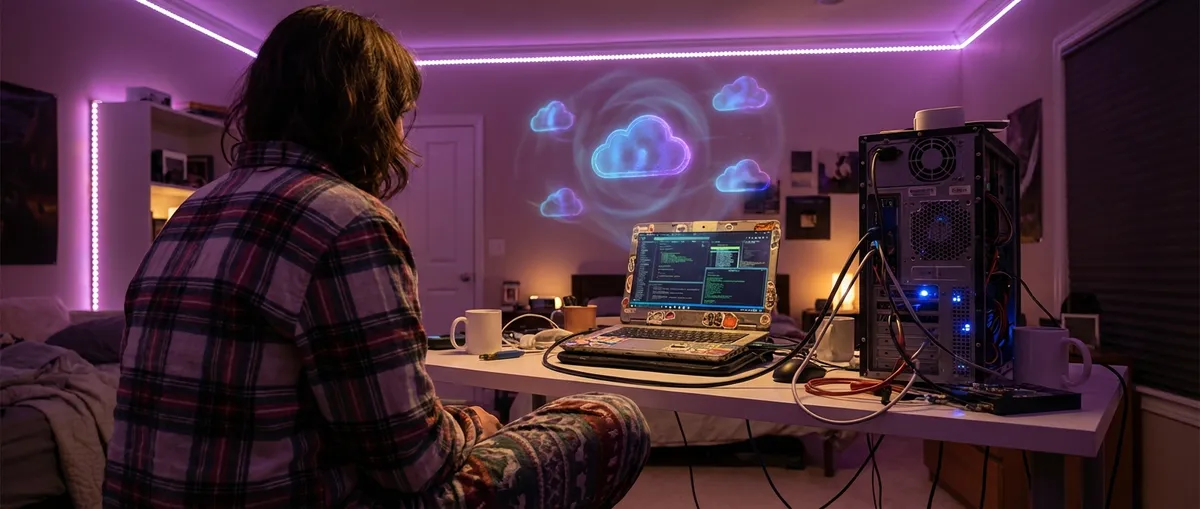
I Tried Turning My Old Laptop Into a “Cloud PC” — Here’s What Happened
I was one bad Zoom call away from throwing my old laptop out the window. Fans screaming. Browser tabs freezing. Battery dying faster than my motivation on a Monday.
Instead of dropping a fortune on a new machine, I went down a rabbit hole and tried something I kept hearing about but never really got: turning my junky laptop into a “cloud PC.”
Spoiler: I’m typing this on that same “trash” laptop right now, and it feels like I secretly bought a new one… but I also hit some very real limits nobody mentions in the hype threads.
Let me walk you through what I did, what actually worked, and what was kind of a mess.
What Even Is a Cloud PC (And Why Should You Care)?
The simplest way I explain it to friends:
Instead of your laptop doing all the heavy lifting, you “remote-control” a powerful computer that lives in a data center somewhere. Your old laptop becomes more like a smart screen and keyboard that streams that powerful PC over the internet.
When I tested this, I tried two flavors:
- A full-on Windows 365 / Azure Virtual Desktop–style experience (the “corporate” way)
- A more DIY setup with NVIDIA GeForce Now and Shadow PC (the “gamer/nerd” way)
Under the hood, it’s all the same idea: virtual machines (VMs) running on someone else’s hardware, GPU acceleration, and low-latency streaming protocols that try to make you forget your computer is actually thousands of miles away.
In my experience, the “wow” kicks in the first time you:
- Open 40 Chrome tabs and your fan doesn’t howl
- Edit a 4K video on a laptop that was choking on 720p last year
- Launch a game your device has no business running locally
The catch? Your internet connection becomes your new CPU. If your Wi‑Fi sucks, your “supercomputer” does too.
My Old Laptop: From Doorstop to Decent Using the Cloud
The patient on my desk: a 2017 13" laptop with 8 GB RAM and a tired dual‑core CPU. It struggled with:
- Multiple Zoom calls a day
- Figma + Chrome + Spotify at the same time
- Any kind of basic video editing
I didn’t want to sink $1,500+ into a new machine if I could squeeze out another year or two from this one. So I tried a cloud PC as a “hardware upgrade without the hardware.”
Step 1: Stripping My Laptop to the Essentials
First move: stop treating the old laptop like a main computer and more like a thin client.
I did a quick refresh:
- Removed heavy background apps and startup junk
- Uninstalled local games and big editors
- Turned off overkill antivirus bloat (kept basic protection)
- Updated Wi‑Fi drivers (this sounds boring, but made a real difference in stability)
Once I did this, the laptop booted faster and stayed cooler. But it was still weak for serious work. That’s where the cloud came in.
Step 2: Testing “Serious Work” in the Cloud
I signed up for a trial of a Windows cloud desktop (similar to Azure Virtual Desktop) with:
- 4 vCPUs
- 16 GB RAM
- GPU acceleration
On that remote machine, I installed:
- Adobe Premiere Pro
- Photoshop
- Visual Studio Code
- A browser with all my extensions synced
From my old laptop, I connected via a remote desktop app. The first time I scrubbed a 4K timeline in Premiere and it didn’t stutter, I actually laughed. Locally, my laptop would lag just previewing 1080p.
What impressed me most was how quickly I could swap contexts. I’d leave big projects open in the cloud PC, shut my laptop, move to another room, open it again, reconnect — boom, my whole workspace was exactly where I left it. It felt like a “persistent brain” living online.
Did it feel exactly like using a powerful local machine? Not quite. There were tiny input delays here and there, especially when my Wi‑Fi dipped. But for productivity and creative work, it was shockingly usable.
The Internet Is Your New Hardware (For Better and Worse)
Here’s where reality slapped me: your cloud PC is only as strong as your connection.
I tested my setup on two networks:
- Home fiber: ~300 Mbps down, ~25 Mbps up, low latency
- Crowded coffee shop Wi‑Fi: speed test said “fine,” but packet loss was awful
On home fiber, the cloud PC felt snappy. I could move windows around, drag clips in Premiere, even do light color grading without feeling disconnected from the machine.
At the coffee shop? Total chaos. Mouse lag. Blurry video for a few seconds at a time. My inputs would land a beat late, which made precise work infuriating.
From the tests I ran, anything around 20–25 Mbps stable with reasonable latency (under ~50 ms) is where it starts to feel smooth-ish for 1080p remote sessions. Above that, you mostly gain reliability and resolution; below that, you slide into “why is everything mushy?”
One thing I didn’t expect: upload speed matters more than you think. People focus on download, but your mouse movements, keystrokes, and screen-sharing all push data back up. With bad upload or jitter, it feels like trying to type through a wet sponge.
So yes, a cloud PC can make your old laptop feel new — but only if your network isn’t held together by prayers and duct tape.
Cloud PC vs. Buying a New Laptop: What I Actually Noticed
I did the math and the “vibes” comparison.
The Money Side
Rough numbers from my experiment:
- A decent new productivity laptop: $1,200–$1,800
- Mid‑tier cloud PC (around 4 vCPUs / 16 GB RAM) at ~ $30–$50/month
- Over 2 years, that’s $720–$1,200 for the cloud PC
So depending on the subscription and how long you keep it, the cost can be slightly cheaper or roughly the same as buying new hardware — but:
- You’re effectively renting power, not owning it
- You can scale up/down — which I loved when I had a heavy project for one month, then downgraded
- If something breaks on their end, they fix it, not you
If you’re a heavy creator or developer, that scaling angle is pretty attractive. One month of “beast mode,” then back to a cheaper config.
The Real-World Feel
Things that felt better on the cloud PC:
- Running multiple heavy apps at once (Premiere + Photoshop + a dozen Chrome tabs)
- Long sessions without my laptop burning my thighs
- Quickly logging in from different devices and seeing the same environment
- Rendering videos while my local machine stayed silent and cool
Things that felt worse or just… weird:
- Short bursts of work on shaky connections — the lag killed my flow
- Anything needing precise input timing (fast gaming, audio production)
- Working in public places with overloaded Wi‑Fi
- The mental friction of “Am I in the cloud PC or on my local machine right now?”
Personally, for deep desk sessions at home, the cloud PC felt like cheating. For “work from anywhere” days, it sometimes annoyed me enough that I just switched back to local apps.
What Works Shockingly Well in the Cloud (And What Really Doesn’t)
When I tested different workflows, the line between “perfect” and “painful” was pretty clear.
Great Use Cases From My Tests
- Remote dev work:
I spun up a Linux-based dev environment in the cloud with Docker, Node, and a full toolchain preconfigured. My old laptop basically turned into a keyboard+screen for a powerful dev box. No more fans going nuclear compiling a project.
- Design and content creation:
Photo editing, basic motion graphics, and layout work were great. No more lag dragging layers around or previewing complex effects.
- Cloud gaming (with caveats):
On a solid connection, playing AAA games via something like GeForce Now felt eerily close to local performance. My ultrabook, which could barely run indie games natively, was suddenly handling games it had no right to.
- “Set and forget” background tasks:
Rendering a big video, running data processing scripts, or training a small ML model — I could disconnect my laptop and the task kept going in the cloud.
Where It Fell Apart for Me
- Low-latency, twitchy games:
Competitive shooters and precise fighting games were noticeably worse. Even a tiny bit of extra latency is a big deal when timing is everything.
- Audio production with real-time monitoring:
I tried doing some music work and live monitoring over the cloud. The delay made it unplayable for me. For serious audio folks, local is still king.
- Travel with terrible hotel Wi‑Fi:
This was actually the most frustrating. I assumed my cloud PC would be perfect for travel; instead, hotel networks made it borderline unusable at times.
So yeah, I stopped thinking of a cloud PC as a replacement for everything and more like a specific power tool I pull out for the right jobs.
Privacy, Data, and “Who Actually Owns My Stuff?”
This is the part nobody wants to think about, but I got a little paranoid once I started living in the cloud more.
When you move your work to a cloud PC:
- Your apps and files live on someone else’s servers
- Your keystrokes and screen data are streaming over the internet constantly
- You’re trusting a vendor’s security, not your own hardware
To dial down the anxiety, here’s what I actually did:
- Enabled two‑factor authentication (2FA) on the cloud account
- Used full-disk encryption within the remote OS when possible
- Kept truly sensitive documents local or on a provider I trust with clear security practices
- Read their data retention and logging policy (yes, it’s boring, but I learned who can see what)
Big providers like Microsoft, Amazon, and Google put huge resources into security, and there are real certifications (like SOC 2, ISO 27001) that indicate they’re not clowns. But there’s no such thing as zero‑risk.
From a trust perspective, I’d absolutely avoid random unknown cloud PC services that give you “crazy high specs for crazy low prices” with no clear company behind them.
So, Should You Turn Your Old Laptop Into a Cloud PC?
Here’s my no-BS summary after living with this setup:
It feels like you:
- Secretly upgraded to a mid-range or high-end machine
- Gave your old laptop a second life as a sleek, quiet portal to something way stronger
- Dodged a big one-time hardware bill in exchange for a flexible subscription
It also feels like you:
- Handcuffed your productivity to your Wi‑Fi quality
- Added another monthly cost to your digital life
- Have to think a bit more about where your data is and who controls it
Who I think this is genuinely great for, based on my experience:
- Remote workers who mostly work from one stable connection
- Developers who need more power sometimes, but not all the time
- Creators doing graphics and video who can’t yet afford a beast of a laptop
- People who like the idea of a “workspace in the cloud” they can log into from multiple devices
Who might be better off just buying new hardware:
- Travelers who work from hotels, trains, coworking spaces, and random cafés
- Competitive gamers and serious audio producers
- Anyone with unreliable or capped internet
- People who hate subscriptions with a passion
I’m personally keeping my cloud PC setup for heavy projects and dev work, and I’ll ride this “revived” old laptop as long as I can. But I’m not ditching the idea of a powerful local machine entirely — I just don’t feel rushed to buy one anymore.
If your laptop is wheezing but your internet is solid, turning it into a cloud PC is one of those “this shouldn’t work this well” hacks that’s absolutely worth trying for a month or two. Just don’t expect magic when your router is hanging on for dear life.
Sources
- Microsoft Azure Virtual Desktop – Overview – Official Microsoft page explaining how cloud-hosted Windows desktops work and typical use cases
- NVIDIA GeForce Now – System Requirements – Details on bandwidth, latency, and device requirements for high-performance game streaming
- Shadow PC – How It Works – Cloud PC provider’s explanation of streaming a full Windows machine from the cloud
- FCC Broadband Speed Guide – U.S. government guidance on what internet speeds support different online activities
- NIST Cloud Computing Definition – Technical definition and characteristics of cloud computing from the U.S. National Institute of Standards and Technology